HOW DO I ACCESS MOBILESERVE?
 There are multiple ways:
1. Visit www.mobileserve.com
2. Visit On Campus / Resource Page for a link
3. Download the app to your phone.



HOW DO I ACCESS MOBILESERVE?
There are multiple ways:HOW DO I SUBMIT THE HOURS I HAVE COMPLETED?
MobileServe has multiple ways to verify your service hours. We would like you to use the EMAIL verification method by getting the email of an adult (non-family member) ONLY.
Please be sure to accurately log the time you served.
If you have questions, see the help page on MobileServe for directions on how to log your hours or see Mr. Forman in room 111.
WHY HAVE SOME SERVICE HOURS I’VE SUBMITTED NOT YET BEEN APPROVED?
Once you complete a service log and indicate the Supervisor’s email, MobileServe will send them an email asking them to verify your hours. Once this completed, Mr. Forman will be notified and will provide final verification so the hours show up on your profile.
COMMON PROBLEMS
If you have questions, see the help page on MobileServe for directions on how to log your hours or see Mr. Forman in room 111.
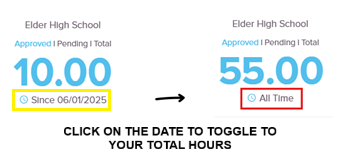
HOW DO I SEE MY TOTAL SERVICE HOURS?
HOW DO I SUBMIT SERVICE HOURS FOR HOSTING A SHADOW?
Thanks for hosting a shadow at Elder!
To submit your hours,
HOW DO I SUBMIT SERVICE HOURS FOR TUTORING A FELLOW STUDENT?
Submit your hours through MobileServe using a picture of you and the student being tutored. You can submit tutoring for service hours whether or not the student attends Elder High School. All tutoring will count as White Hours.
Mr. Todd Forman
Community Service Coordinator
formantt@elderhs.net | Room 111 | 513.921.3441